Grand Opening & Black Friday Sale  =  50% Off 

Download Adobe Bridge software at no cost.
Down Arrow

Adobe Bridge: How to Download and Use It For Free

As a budding photographer or digital creator, you know how special each one of your photos is. Your collection tells stories of beauty and emotion. But managing thousands of images can be a challenge.

Adobe Bridge is here to help. It lets you organize your photos and videos easily. And the best part? It’s free.

Imagine being able to sort your photos without spending a penny. Bridge makes it possible. It’s one of the must-haves for photographers who want to keep their digital artwork well organized.

Key Takeaways

  • Adobe Bridge provides comprehensive digital asset management for free.
  • Utilize favourites and collections to streamline your workflow.
  • Adobe Bridge download and installation are straightforward and cost-free.
  • A Creative Cloud account is needed, but no paid subscription is required.
  • Organizing your photo and video library has never been easier with Bridge.

Table of Contents

Overview of Adobe Bridge Features

Adobe Bridge is a key tool for managing your creative assets. It lets you browse, organize, and preview different digital files effortlessly. It works well with other post-processing tools to make your workflow smoother.

Understanding Digital Asset Management in Adobe Bridge

Adobe Bridge makes managing digital assets easy and efficient. You can tag your files with metadata for quick categorization and search.

Whether you need to rename files, add keywords, or set colour labels, Adobe Bridge has you covered. It empowers you to manage your digital assets effectively.

How to Organize Your Image Files with Adobe Bridge

Organizing image files is easy with Bridge and the Camera Raw filter . It offers scalable quality previews and centralized settings to keep your files organized. You can create collections, add ratings, and use folders to keep everything in order.

The software also provides robust metadata management. This lets you embed information directly into the file. Making it easy to find, review, and use your assets.

FeatureDescription
Batch ProcessingAutomate repetitive tasks to save time.
Metadata IntegrationAdd and edit images in the Camera Raw panel. file information for easier search and organization.
Direct Upload to Adobe StockSmoothly upload and sell your creative work.
Scalable Quality PreviewsView your image files in various quality levels, depending on your needs.

Using Collections in Adobe Bridge

Collections in Bridge make managing digital assets easy. They help keep your projects tidy. This way, you can work more efficiently and access important files quickly.

Creating and Managing Collections of Assets

Adobe Bridge makes it simple to create and manage collections. You can group images, videos, or other content together using the custom collections option. This keeps everything organized in one spot.

It makes finding and previewing files fast. This is ideal for anyone who needs to access their work quickly.

To start, follow these steps:

  • Open Bridge and go to the folders you want to add to your collection.
  • Select the files and right-click to choose “Add to Collection.”
  • Create a new collection by naming it and saving it.
  • Drag and drop more files into the collection as needed.

Automatically organizing images based on collections

Adobe Bridge is excellent at organizing images automatically. You can set up rules based on metadata or file type. This way, your assets are sorted without you having to do it manually.

Here are some strategies for automatic organization:

  • File Type: Group images, videos, and other types by file type automatically.
  • Metadata: Sort collections by date, tags, or ratings.
  • Custom Rules: Create custom criteria for your specific needs.

These methods will help keep your digital workspace organized. You can access your files quickly and easily. Plus Bridge's preview feature lets you see what's in your collections easily.

FeatureBenefits
Custom CollectionsGroup assets easily for a streamlined workflow
Automatic OrganizationSave time by automating sorting using metadata
File Type Grouping panelAutomatically sort by file type for quick access
Preview FunctionalityQuickly preview collections to find assets

Why Photographers and Creatives Use Bridge

As a photographer or creative, you know how crucial it is to keep your photos in order. Adobe Bridge is a powerful tool that helps with this. It offers some really advanced features that other free programs don’t.

Keep Large Photo Libraries Organized.

Photographers find Bridge to be an intuitive platform for managing files. It supports formats like DNG, TIFF, JPEG, and PNG. Plus if you are shooting video bridge supports MP4, MOV, AVI, MPEG and Windows WMV. This means your photo libraries stay organized and your assets are easy to find.

Save Time with Batch Renaming and Metadata Tools

Adobe Bridge has batch renaming tools that let you rename many files at once. This saves a lot of time. You can also add detailed metadata to your images. This includes your name, location, or subject matter.

These features are key for organizing and categorizing your work. They make your workflow more efficient.

FeatureBenefits
batch renamingQuickly rename multiple files, enhancing efficiency and organization.
Metadata toolsEmbed detailed information into images for better categorization and search-ability.
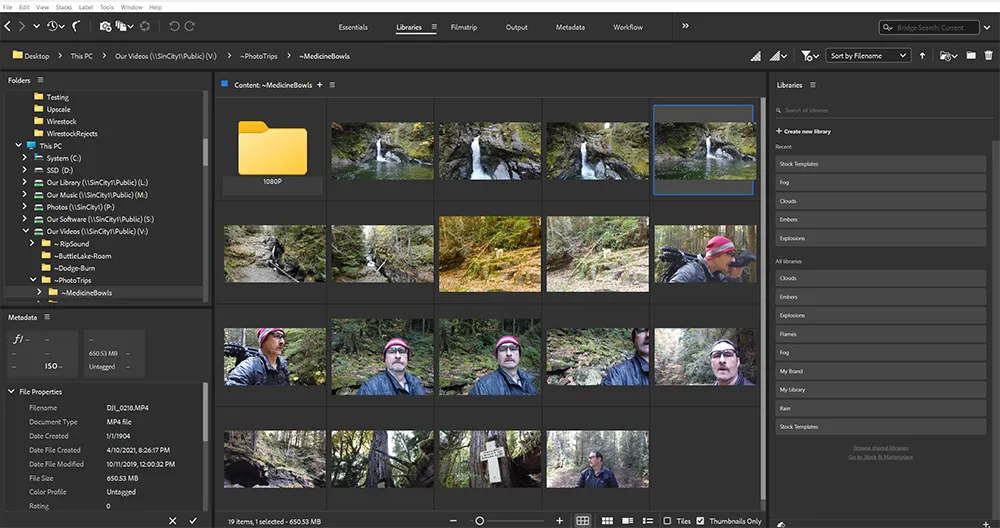
Here's an example of the Adobe Bridge interface in action while utilizing the program.

Flexible: Works with Many File Types Beyond Photos

Adobe Bridge stands out for its flexibility. It supports a wide range of file types, not just photos, including raw formats. This includes video files, documents, and other creative assets.

This makes Bridge a valuable tool for managing creative projects. Its integration with Adobe Stock, and Photoshop makes it even more useful. Helpful hint: you can change the association from an Adobe product to any post-processing software that you own. For example, if you use Neo, On1 or DxO Photolab. 

How to Download Adobe Bridge for Free

Downloading Adobe Bridge for free is easy. Here’s how to get started:

Step-by-Step Instructions to Download from Adobe’s Site

  • Go to the Adobe website and find the Adobe Bridge page.
  • Click the ‘Download’ button to start the free download.
  • You’ll need to sign in with your Adobe Creative Cloud account. If you don’t have one, you can create it for free.
  • After signing in, just follow the instructions to finish the download and installation.

You Don’t Need a Paid Plan

You don’t need to pay for Adobe Bridge. Just having an Adobe Creative Cloud account The app lets you use it for free. This is great for those who want powerful tools without extra costs.

System Requirements Overview

Before you start, make sure your system can run Adobe Bridge. This ensures it works well and smoothly.

Operating SystemWindowsMac
RequirementWindows 10 (64-bit) or latermacOS 10.14 or later

Meeting the system requirements and downloading the latest version from Adobe will make installation easy. This way, you'll get the best performance when using Adobe Bridge.

Tips for Getting the Most Out of Bridge

By following a few key practices, you can unlock its full potential. Greatly improve your workflow. Here are some tips to make Adobe Bridge a smooth and efficient part of your work flow.

Set up a Clean Folder Structure

A clean folder structure This boosts your efficiency when using Adobe Photoshop. Begin by organizing your folders and subfolders in a logical way. This makes finding files easier and keeps your workspace tidy in the latest version of the app.

Use descriptive names for your folders. This helps you navigate through large datasets more easily.

Use Keywords and Ratings Consistently

Keywords and ratings help you quickly find and sort your assets. Always use relevant keywords and ratings when you import files. This makes managing large collections easier.

Consistent use of these features keeps your workflow efficient and productive.

Enable Cache for Faster Previews

Adobe Bridge’s caching feature speeds up previews. Enabling cache makes thumbnails and previews load faster. This will save you a lot of time, which is crucial when working with high-resolution images in Adobe Photoshop.

Faster previews make your workflow smoother and more effective.

TipBenefits
Set up a Clean Folder StructureImproves organization and file retrieval
Use Keywords and Ratings ConsistentlyEnhances searchability and sorting
Enable cache for faster previews.Speeds up browsing and previewing

Conclusion

Adobe Bridge is a top choice for creatives wanting to make their workflow smoother with Adobe Photoshop. If you are looking for a way to manage all your digital assets bridge could be the best choice for you. 

One big plus of Adobe Bridge is that it’s free. This makes it great for anyone wanting to improve their asset management. With its easy-to-use features, you can save time and keep your assets organized.

It’s time to download Adobe Bridge and see how it can change your workflow. It will make managing your photos and assets easier. This means you can spend more time on the creative parts of your projects.

Frequently Asked Questions

Adobe Bridge is used for digital asset management. It’s a powerful tool that helps you organize, browse, locate, and preview a wide variety of creative files, including images, videos, and PDFs, without having to open each application. It’s essential for streamlining your workflow and adding metadata

What is the difference between Adobe Bridge and Lightroom? Adobe Bridge is a file browser and digital asset manager for multiple file types, like images, videos, and PDFs, ideal for quick organization. Lightroom is a comprehensive, catalog-based application designed specifically for photographers to organize, edit, and manage their photo library.

Our Latest Blogs